


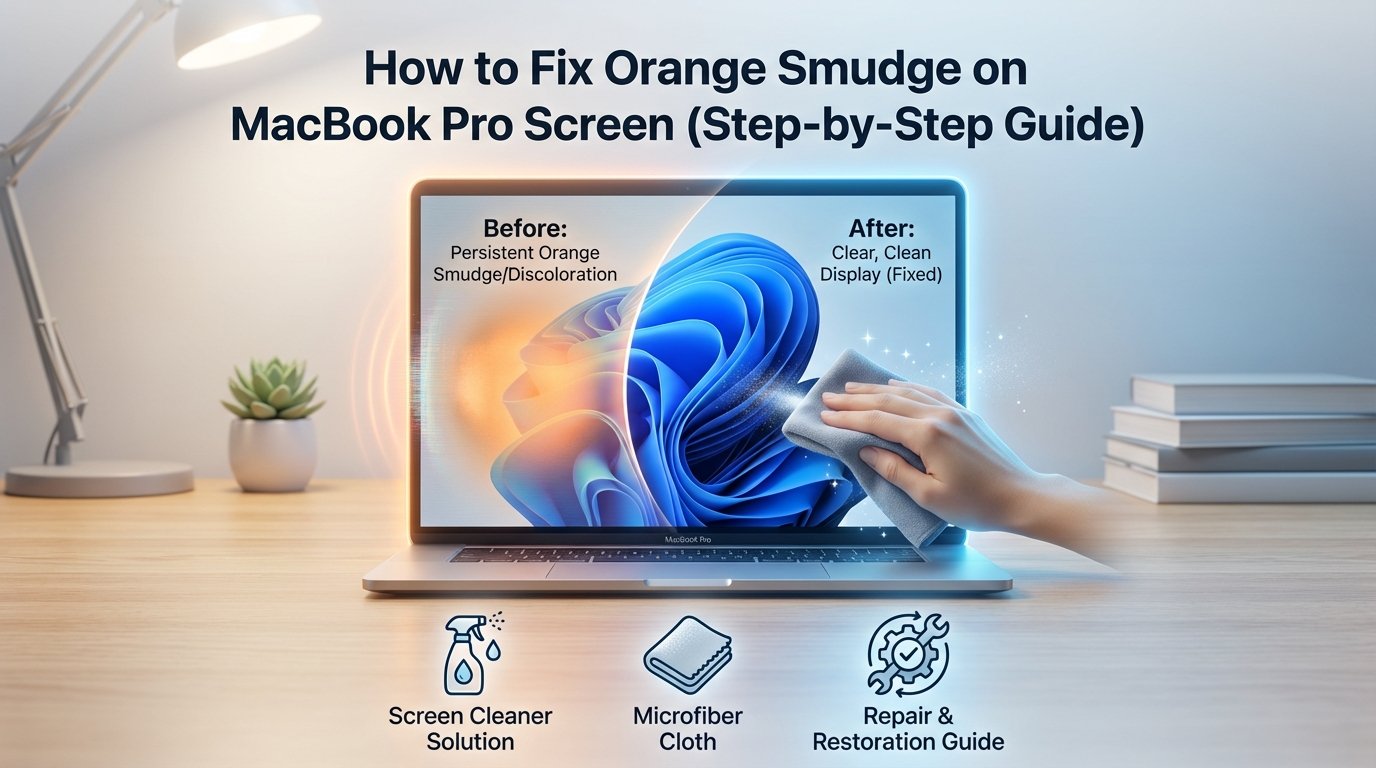
If you’ve recently noticed an orange smudge on MacBook Pro screen, you’re not alone. Many users experience strange discolorations that can appear suddenly and ruin the viewing experience. The good news? In most cases, this issue can be fixed—or at least improved—without needing to replace your entire screen.
In this detailed, beginner-friendly guide, we’ll walk you through the causes, step-by-step solutions, and prevention tips to help you deal with the problem effectively.
Table of contents
- What Is the Orange Smudge on MacBook Pro Screen?
- Common Causes of Orange Smudge on MacBook Pro Screen
- Step-by-Step Fixes for Orange Smudge on MacBook Pro Screen
- DIY Fixes vs Professional Repair
- How to Prevent Orange Smudge on MacBook Pro Screen
- Signs You Need Screen Replacement
- Frequently Asked Questions (FAQs)
- Conclusion
What Is the Orange Smudge on MacBook Pro Screen?
An orange smudge on MacBook Pro screen usually appears as:
- A faint orange or yellowish patch
- A blurry or cloudy spot
- A discoloration that doesn’t go away when wiped
It may look like dirt at first, but often it’s something deeper than just surface grime.
Common Causes of Orange Smudge on MacBook Pro Screen
Before fixing the issue, it’s important to understand what might be causing it.
1. Pressure Damage
If something heavy pressed against your screen (like closing the lid with an object inside), it can damage the display layers.
2. Heat Exposure
Excessive heat can affect the internal components, leading to discoloration.
3. Screen Coating Damage
MacBook screens have an anti-reflective coating. Over time, it may wear off and create smudge-like patches.
4. Liquid or Moisture Exposure
Even small amounts of moisture can seep into the display and cause color distortion.
5. Dead Pixels or Display Issues
Sometimes the problem is internal—related to pixels or the display panel itself.
Step-by-Step Fixes for Orange Smudge on MacBook Pro Screen
Let’s go through the solutions one by one.
Step 1: Clean the Screen Properly
Sometimes, what looks like a serious issue is just stubborn dirt or oil.
What you need:
- Microfiber cloth
- Distilled water or screen-safe cleaner
Steps:
- Turn off your MacBook
- Slightly dampen the microfiber cloth (never spray directly)
- Gently wipe the affected area in circular motion
- Let it dry completely
👉 Avoid:
- Using tissue paper
- Using harsh chemicals like alcohol or ammonia
Step 2: Check for Pressure Marks
Look closely at the smudge:
- Does it change when you tilt the screen?
- Does it look like an internal stain?
If yes, it might be pressure damage.
Fix:
- Unfortunately, pressure damage is usually permanent
- You can reduce visibility by adjusting brightness or using dark mode
Step 3: Test with a White Background
Open a plain white image or document.
Why this helps:
- It makes discoloration more visible
- Helps confirm whether it’s a hardware issue
If the orange smudge on MacBook Pro screen is still visible, it’s likely not dirt.
Step 4: Use Pixel Fixing Tools
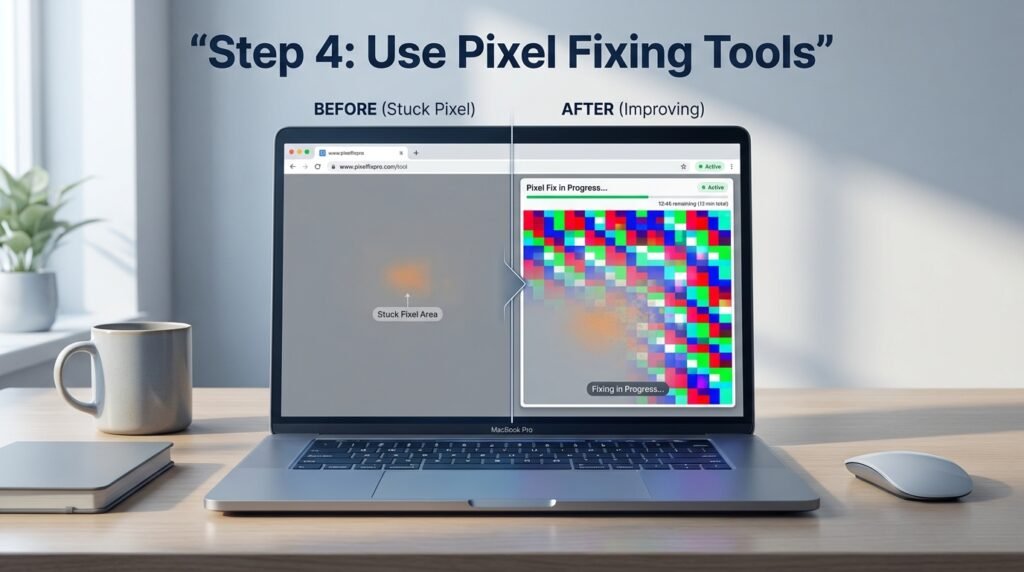
If the issue is pixel-related, you can try online pixel-fixing tools.
How it works:
- Rapid color changes stimulate stuck pixels
- May fix minor display issues
Steps:
- Open a pixel-fixer website
- Run it for 10–15 minutes
- Check if the smudge improves
⚠️ Note: This works only for minor pixel issues.
Step 5: Reset Display Settings
Sometimes software glitches can affect screen colors.
Reset steps:
- Restart your MacBook
- Reset NVRAM/PRAM:
- Turn off your Mac
- Turn it on and press:
Option + Command + P + R - Hold for 20 seconds
This may fix color-related issues.
Step 6: Check for Screen Coating Damage
If the smudge looks patchy or worn out, it could be coating damage.
Signs:
- Irregular shapes
- Appears more in light reflection
- Doesn’t change with cleaning
Fix options:
- Professional screen polishing
- Screen replacement (if severe)
Step 7: Visit a Professional Technician
If none of the above steps work, it’s time to get expert help.
You may need:
- Display repair
- Screen replacement
DIY Fixes vs Professional Repair
| Option | When to Use | Cost |
|---|---|---|
| Cleaning | Surface smudge | Free |
| Pixel Fix | Minor pixel issue | Free |
| Reset Settings | Software glitch | Free |
| Screen Repair | Internal damage | Medium |
| Screen Replacement | Severe damage | High |
How to Prevent Orange Smudge on MacBook Pro Screen
Prevention is always better than repair.
1. Avoid Pressure on Screen
- Don’t place objects between keyboard and screen
- Use a protective sleeve
2. Clean Screen Regularly
- Use microfiber cloth only
- Avoid harsh chemicals
3. Keep Away from Heat
- Don’t leave your MacBook in hot environments
- Ensure proper ventilation
4. Handle with Care
- Open/close lid gently
- Avoid dropping or pressing the screen
5. Use Keyboard Cover Carefully
- Thick covers can cause pressure marks
Signs You Need Screen Replacement
Sometimes fixing isn’t possible. Watch out for these signs:
- Smudge keeps growing
- Colors are distorted
- Screen flickering
- Multiple patches appearing
In such cases, replacing the display is the best option.
Frequently Asked Questions (FAQs)
It can be caused by pressure damage, heat exposure, coating wear, or internal display issues.
Yes, if it’s due to dirt or minor pixel issues. Otherwise, professional repair may be required.
It depends on the cause. Surface smudges are harmless, but internal damage can worsen over time.
If your device is under warranty or affected by a known issue, it might be covered.
Only if it’s caused by dirt or oil. Internal issues won’t be fixed by cleaning.
Costs vary, but screen replacement can be expensive compared to minor repairs.
Yes, especially if caused by internal damage or pressure issues.
Conclusion
Dealing with an orange smudge on MacBook Pro screen can be frustrating, but not all cases are serious. Start with simple fixes like cleaning and display resets. If the problem persists, it’s likely a hardware issue that may require professional repair.
The key takeaway:
- Identify the cause first
- Try basic fixes
- Avoid pressure and heat to prevent future damage
Taking proper care of your MacBook screen can save you from costly repairs and keep your display looking perfect for years.